Live face swap on Telegram video calls
Use live face swap on Telegram video calls from your Windows PC. Choose ZaraFace Camera in Telegram Desktop, go live in the ZaraFace app, and the people on your call see your AI character follow your expressions in real time.
It works for one-to-one calls and for the video chats you host in groups and channels, as long as you say it's AI. The video below shows the whole setup in under two minutes.
How to set up face swap on Telegram Desktop
Install the ZaraFace app and Telegram Desktop on the same Windows 11 PC. Telegram keeps the camera you choose, so next time you only need to go live in ZaraFace and call.
-
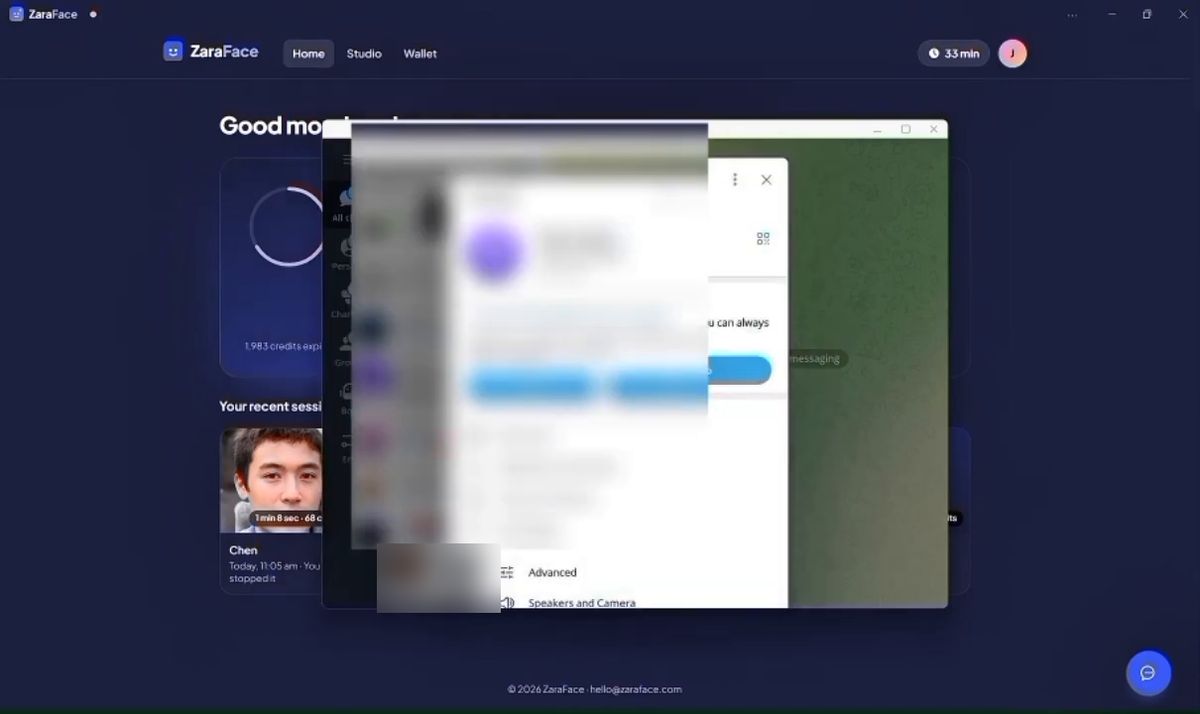
Open Telegram settings
In Telegram Desktop, open Settings, then Speakers and Camera (under Advanced in some versions).
-
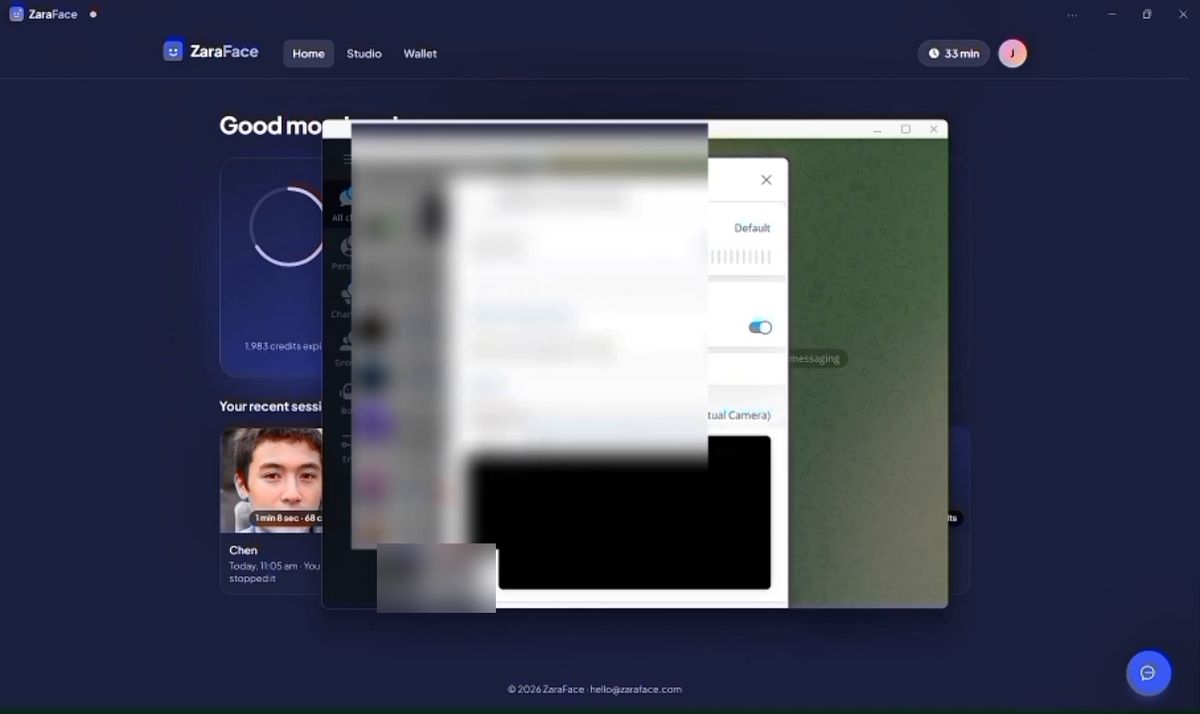
Choose ZaraFace Camera
Under Camera, choose ZaraFace Camera (Windows Virtual Camera).
-
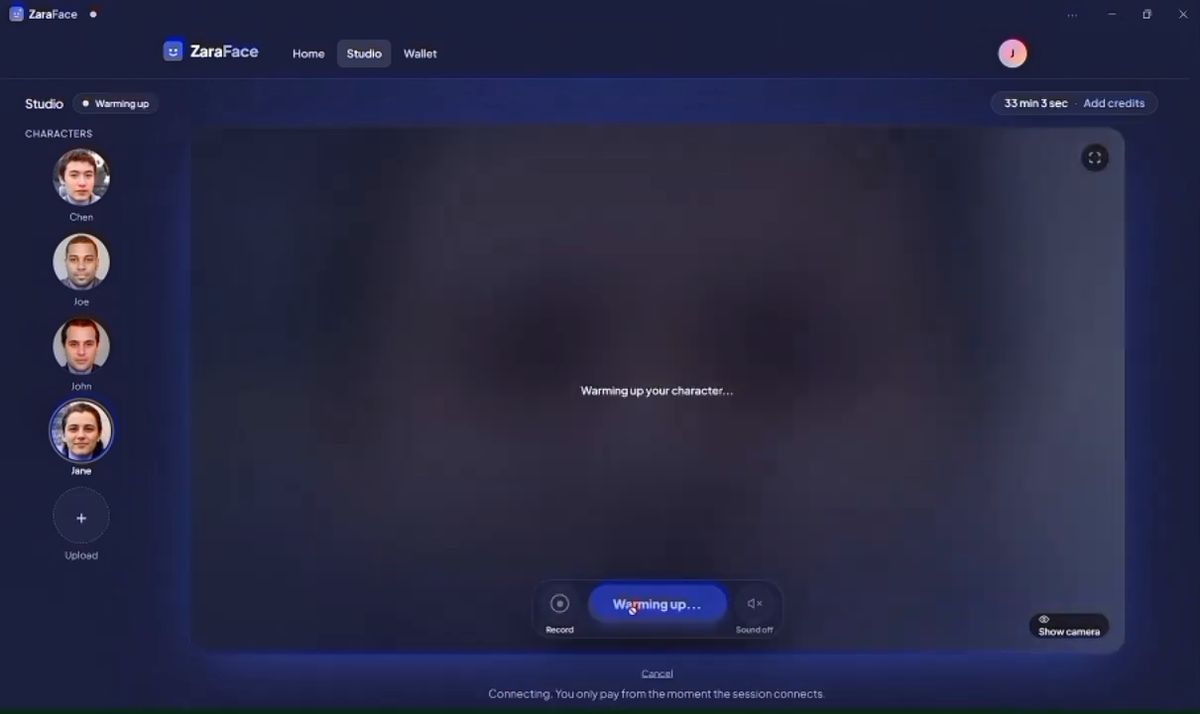
Go live
In the ZaraFace app, pick a character, turn on your camera and press Go live, before or during the call.
-
Start the call
Open the chat and start a video call.
-
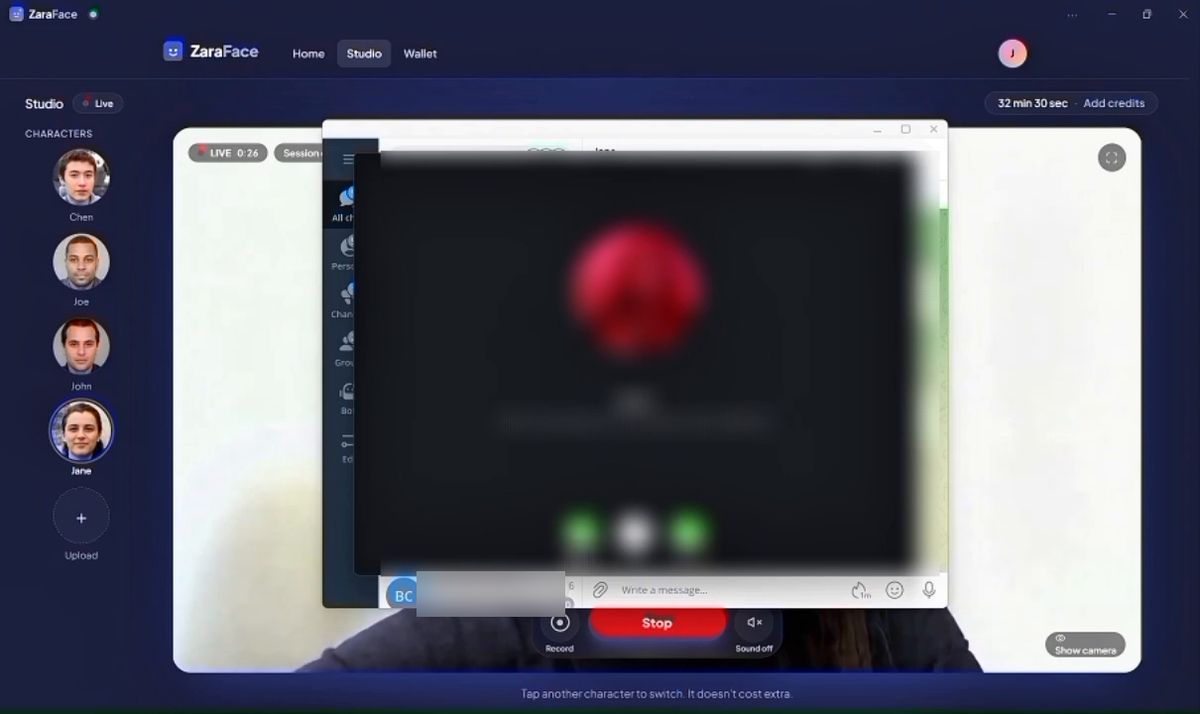
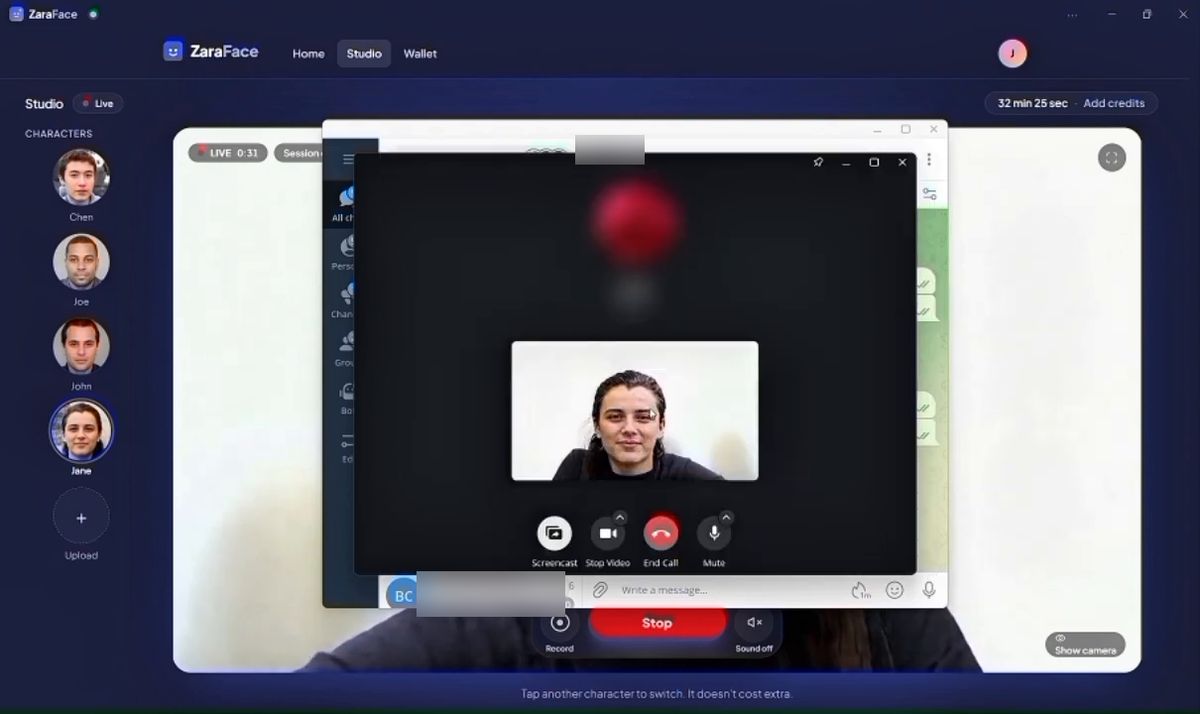
Live in the call
The other person sees your character, not you. The picture can take a few seconds to appear and may be black at first.
Why use ZaraFace for Telegram calls
Works in Telegram Desktop
ZaraFace Camera appears in Telegram Desktop's camera settings like a normal webcam, so your character works in the desktop app, not only in a browser.
Cloud AI on an ordinary laptop
The face swap runs on cloud servers, so you don't need a gaming graphics card or OBS. A webcam and a stable connection are enough.
Change character without leaving the call
Hosting a long chat? Switch to another character from the Studio while you're live. Switching is free.
Pay only while you're live
Credits are spent per second while you're live: 1 credit = 1 second, at ₦55 ≈ $0.04. Top up in naira or crypto, with no subscription.
Ideas for Telegram face swap
Group video chats as your character
Run a community video chat in your group or channel as the same character every time, so members recognise you straight away.
Calls with friends who are in on it
Call a friend as a character for a laugh. Tell them it's AI, then switch characters mid-call to keep it going.
Skits for your channel
Record a sketch over a call with Record in the Studio, then post it to your channel with an "AI-generated" label. Recordings carry a small "AI · ZaraFace" watermark.
Privacy for creators
If you'd rather not show your real face, a character lets you host and appear on video while your call shows the character instead.
What you need
💻 Windows 11 for the app
The ZaraFace app (and ZaraFace Camera for your calls) needs Windows 11. The Studio also works in Google Chrome on any laptop or desktop computer.
📷 A webcam
The built-in laptop camera is fine. An external HD webcam looks even better.
💡 Good light on your face
Face a window or a lamp. Avoid strong light behind you.
📶 A stable internet connection
About 4 Mbps both up and down: good Wi-Fi, or a strong 4G/5G signal. Office and school Wi-Fi and most VPNs can block live video; the Studio checks your connection when your camera turns on.
Telegram Desktop for Windows
The Telegram app installed on the same PC and signed in. ZaraFace Camera doesn't reach Telegram on your phone.
Troubleshooting Telegram face swap
I can't find the camera setting in Telegram
Open Settings, then Speakers and Camera. In some versions it sits under Advanced. If you only see microphone options, update Telegram Desktop to its latest version.
ZaraFace Camera isn't listed in Telegram
Check that the ZaraFace app is open and signed in, then quit Telegram Desktop completely and reopen it, so it looks for cameras again. ZaraFace Camera comes with the Windows app only.
The video is black when the call starts
Telegram shows your character only while you're live in ZaraFace. Press Go live, wait for the warm-up, and give the picture a few seconds to reach the call.
The video chat looks blurry or freezes
Your PC is sending live video to ZaraFace and to Telegram at the same time. Use good Wi-Fi or a cable, pause big downloads, turn off any VPN, and try a phone hotspot if your network blocks live video.
Telegram face swap questions
Does it work in Telegram group video chats?
Yes, when you join from Telegram Desktop on Windows. Choose ZaraFace Camera as your camera, go live in ZaraFace, then turn on your video in the chat.
Can I use ZaraFace with Telegram on Android or iPhone?
No. ZaraFace Camera is a Windows camera, so it only reaches Telegram Desktop on a Windows 11 PC.
How much does a Telegram call with face swap cost?
You pay for the seconds you're live in ZaraFace, not for the call itself: 1 credit = 1 second, so a full minute live is 60 credits (₦3,300 ≈ $3).
What happens when my session ends mid-call?
A ZaraFace session lasts up to 10 minutes, or until your credits run out. When it ends, your character leaves the picture but the Telegram call carries on. Press Go live again to bring your character back.
Can I change character during a Telegram call?
Yes. Tap another character in the Studio while you're live. The call keeps going and the new character appears in a moment, at no extra cost.
More answers in the FAQ, or contact us.
The rules
- • Only use your own face, an original character, or the face of someone who clearly agreed.
- • Never impersonate real people, run scams, make sexual content, use images of anyone under 18, or harass anyone.
- • Always say it's AI when you share, and don't remove the watermark.
Read the full Acceptable Use Policy. Breaking the rules gets accounts banned.
Try face swap on your next Telegram call
Get the Windows app, choose ZaraFace Camera in Telegram and go live. The camera preview is free, so you can get your light right first.
Windows 11 · Works in Zoom, Google Meet, WhatsApp and TikTok LIVE Studio